


Create a professional virtual background that does more than hide your room. Add your name, branding and a scannable QR code so people can open your digital profile during Zoom, Teams or Google Meet calls.

A professional virtual background with a QR code can turn an ordinary video call into a simple contact-sharing opportunity. Instead of spelling out your email address or promising to send your details later, you can let participants scan the code and open your digital profile while the meeting is still in progress.
The background still needs to do its first job well: keep the screen clean, support your personal brand and leave your face easy to see. The QR code, name and call to action should help without distracting from the conversation. This guide explains how to balance all of those elements and test the result before a real call.
Decide on the destination before designing the background. A QR code can open a website, booking page, portfolio or contact file, but a mobile-friendly digital profile is usually the most flexible choice. It gives the visitor one place to call, email, save your details and continue to the most relevant link.
Avoid encoding a long list of fixed contact details directly into the image. If your phone number, role or portfolio changes, an old code may immediately become outdated. A QR code that opens one stable online profile lets you update the destination content without rebuilding every background.
Before generating the image, review the elements listed in our guide to what a digital business card should include. Keep the first screen focused on the action most useful after a video call.
Most meeting layouts work naturally with a horizontal 16:9 background. Use a high-resolution image, restrained colours and enough empty space around the position where your head and shoulders will appear. A busy office photo, strong pattern or several competing logos can make both your face and the QR code harder to read.
Choose a background that matches the type of meeting. A neutral branded design suits client calls and interviews. A webinar can carry slightly more visual information, but the result should still be understandable when your video tile becomes small.
The Fulpio virtual background creator lets you choose a layout and a gallery background or upload your own image. Your name, profile link and profile QR code are then added automatically before you download the finished background.
Your head and shoulders normally occupy the centre of the frame, so keep the QR code in an outer corner or side area. Leave a clear safety margin from the edges because meeting platforms may crop the background differently in gallery view, mobile view or a narrow window.
Do not put the code directly behind your shoulder, beside moving hair or near controls that cover the lower part of the screen. Also keep your name and role in a separate readable zone. The exact corner matters less than making sure the code remains visible throughout your usual posture and camera framing.
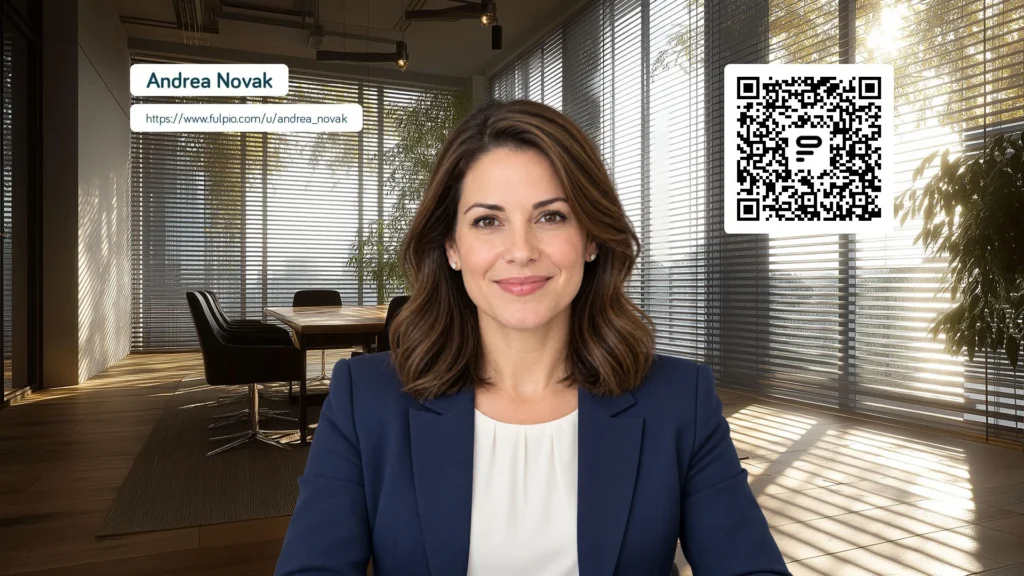
A code that looks sharp in the original file may become much smaller after video compression. Use a dark code on a light, plain field, preserve the clear border around it and never stretch it out of proportion. Decorative textures and low-contrast brand colours may look attractive but reduce scan reliability.
Test the size in a realistic meeting tile, not only in the full-resolution design. Ask someone to scan it from another device while your camera is running. If scanning takes several attempts, enlarge the code or simplify the area around it.
Add a short call to action such as “Scan to view my profile.” Participants should understand what will open before they point a camera at the screen. A visible profile link or a link shared in the chat is also a useful alternative for people joining from one device.
Many meeting apps mirror your own preview so it feels like looking into a mirror. Other participants may still receive the image correctly, which can make a readable background look reversed only to you. Do not redesign or flip the file based on the self-view alone.
Start a test call with a second device or ask a colleague to confirm how the background appears to other participants. Check both the text and QR code. If the platform provides a mirror-video setting, understand whether it changes only your preview or the outgoing image before adjusting anything.
Download the completed background as a clear JPG or PNG. In Zoom, open the video and effects settings, choose the background section and add your image. In Microsoft Teams, open Effects and avatars before joining, or Video effects during a meeting, then choose Add new. In Google Meet, open Backgrounds and effects and upload the image as a custom background.
Menus can differ slightly by device, account and application version. Always preview the result before joining. Some business accounts also restrict custom backgrounds through administrator settings, so prepare a plain branded alternative or share your profile link in the chat if the upload option is unavailable.
A final test should use the same laptop, camera position, light and meeting application that you normally use. Confirm that your face is separated cleanly from the background, your name is readable and the QR code remains unobstructed when you move naturally.
Then check the scan from different phone cameras and from the approximate size at which participants will see your tile. Open the destination and verify that it loads quickly on mobile. The broader comparison of NFC and QR code sharing explains why a direct link should remain available as a fallback.
A QR background works best as a quiet option, not as a permanent advertisement. Mention it when contact sharing is relevant: at the end of a presentation, during introductions or when someone asks for your details. Leave enough time for a scan and paste the profile link into the chat for people using a single screen.
For sensitive, internal or very formal meetings, a simpler background may be more appropriate. You can keep different versions for client calls, webinars and interviews while using the same profile destination.
The background is only the entrance. The profile it opens should contain a current phone number, email address, role, useful links and a clear next action. Review it before an important event and remove anything that no longer supports the conversation.
With Fulpio, the QR code on the background continues to open the latest version of your profile even after you update its content. Create your free Fulpio virtual meeting background, test it from another device and keep a direct profile link ready as a simple backup.
Create your digital business card for free. Forever.
And show the world more than just a contact.
