


Most modern iPhones and many Android phones can open an NFC business card with a tap, but the reading area and settings differ. Learn how to test compatibility, position the card correctly and switch to QR when tapping is not available.
Yes. An NFC business card works with compatible iPhones and Android phones, and the recipient normally does not need to install an app. On newer iPhones, NFC tag reading is usually available automatically. On Android, support depends on the phone model and NFC may need to be enabled in the settings.
The experience is simple when the phone, setting and tap position are right: hold the card close to the phone's NFC antenna, wait for a notification and tap it to open the digital profile in the browser. If a phone cannot read NFC, a QR code or direct profile link provides a practical alternative.
The phone needs NFC hardware, permission to read the tag and a browser that can open the stored web address. It also needs an internet connection to load an online profile, even though the short NFC instruction itself can be read without mobile data.
The card does not pair with the phone through Bluetooth, does not require charging and does not install anything. Its chip normally contains a link. When the phone reads that link, it shows a notification and leaves the recipient in control of whether to open it.
This is the same basic process described in our guide to how NFC business cards work. The important compatibility question is therefore not which app the recipient uses, but whether the phone can read an NFC tag and where its antenna is located.
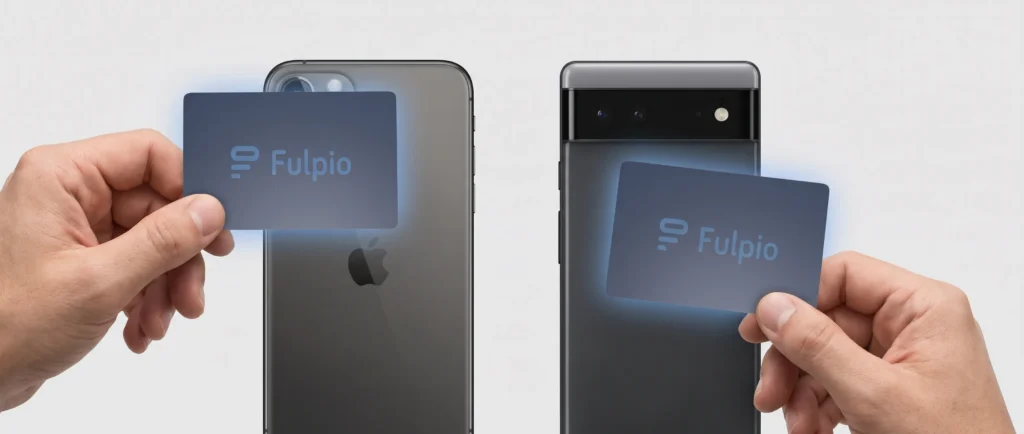
Fulpio's maintained compatibility guidance covers supported iPhone generations and the difference between older and newer reading behaviour. As a practical rule, modern iPhones can read NFC tags, while newer models offer the most seamless experience because background NFC reading does not require a separate reader app.
On a compatible iPhone, unlock the screen and hold the upper part of the phone close to the NFC card. Keep the card still for a moment and move it away once the notification appears. You do not need to press the card hard against the phone.
Older supported models may require a manual NFC reader or a different workflow depending on the iOS version. Rather than relying on a model list that can become outdated, use the localized NFC compatibility guide when you need to check a specific device.
The NFC reading area on an iPhone is generally near the top edge of the device. Bring the card close to the upper back or top portion of the phone, not the centre of the display. A slow, deliberate movement works better than waving the card over the whole phone.
The screen should be awake. If nothing happens, remove the card, wait a second and try again at a slightly different angle. Thick or magnetic cases can reduce the effective reading distance, so removing the case is a useful troubleshooting step.
Android compatibility varies more because many manufacturers produce phones across different price ranges. Most current mid-range and premium devices include NFC, but some models do not. The clearest test is to search the phone's settings for “NFC”, “Connections” or “Connected devices”. If an NFC switch is present, turn it on.
On many Android phones, the NFC antenna sits around the centre or upper part of the back. The exact position can differ by brand and model. Hold the card flat against that area for a moment. If the notification does not appear, slide the card slowly up or down rather than repeatedly tapping at random.
NFC settings may also be available in the quick settings panel. The recipient does not need to configure a payment card: reading a web link from a business card is separate from making a contactless payment.
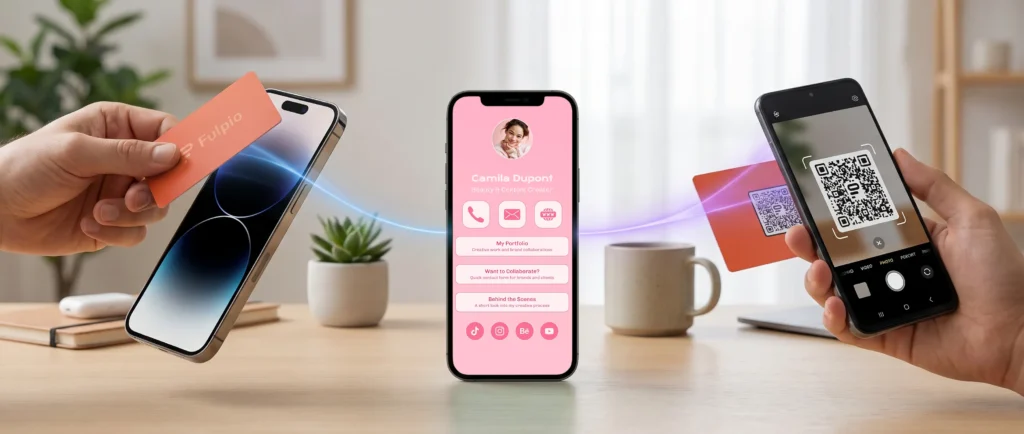
No. A compatible phone reads the link and opens the profile in a standard browser. The recipient can view your details without a Fulpio account and can choose whether to save, share or use the information you make available.
The app is relevant to the profile owner for creating, editing and managing a profile. It is not a requirement for the person receiving the contact. This distinction removes one of the biggest barriers in real meetings: you do not have to ask a new contact to download something before seeing your details.
A failed first tap usually does not mean the card or phone is incompatible. Common causes include the wrong antenna position, NFC being turned off on Android, a locked or sleeping screen, the card being moved too quickly, another NFC card nearby, or a thick case between the chip and antenna.
Try this short sequence:
1. Wake and unlock the phone.
2. Confirm that NFC is enabled on Android.
3. Separate the NFC card from other cards or a wallet.
4. Hold it still against the likely antenna area for one to two seconds.
5. Remove a thick or magnetic case and try once more.
6. Use the QR code if the phone still does not respond.
The digital profile can still be shared. A visible QR code can be scanned with the phone camera, and a direct link can be sent through email, a message or a social network. The destination remains the same; only the path to it changes.
This is why the best practical comparison is not iPhone versus Android. It is tap plus fallback. Our guide to NFC versus QR code explains when tapping is fastest and when scanning is more flexible.
A QR code is especially useful with older phones, models without NFC, disabled settings, unusual cases or situations where the recipient is viewing your contact details on a screen or printed material rather than standing next to you.
Use one current digital profile and give people more than one way to reach it. **NFC business card iPhone Android** compatibility is strongest in practice when the physical product also carries a visible QR code and you can send the same profile as a link.
Before an event or client meeting, test the NFC tap on at least one iPhone and one Android phone. Learn the most likely tap areas, keep the QR code unobstructed and avoid placing the NFC card directly against other contactless cards. A ten-second test prevents awkward troubleshooting during an important introduction.
Fulpio's NFC cards, wristbands and tags combine fast contactless sharing with a QR option on supported products. Both methods can lead to the same profile, so changes to your phone number, role, links or portfolio remain available without reprinting the physical device.
With a modern iPhone or an NFC-equipped Android phone, probably yes. The key differences are whether NFC needs to be enabled and where the phone's antenna is located. You can confirm uncertain devices on the maintained compatibility page instead of memorising a long model list.
For the most dependable real-world setup, use NFC for the fastest in-person interaction, QR for broad compatibility and a direct link for remote sharing. That combination makes a Fulpio digital business card useful across iPhone, Android and the many situations where a tap is not the best option.
Create your digital business card for free. Forever.
And show the world more than just a contact.
